
Wear OS
Install and use the Sparta Wear OS companion on your Android watch.
Sparta has a Wear OS companion app that pairs with your phone. It mirrors what’s happening on the phone in real time and lets you drive your workout from your wrist.
Installing
The Wear OS app installs alongside the phone app. Once you have Sparta Fitness on your Android phone, the matching watch app appears in the Play Store on your paired watch automatically.
To install:
- Make sure your watch is paired with the phone running Sparta.
- Open the Play Store on your watch.
- Search for Sparta Fitness and install.
You don’t have to sign in on the watch. It uses the account you’re already signed into on the phone.
Check-in screen
When you open the app on the watch, you see one big circular button. Tap it to check in for the day.
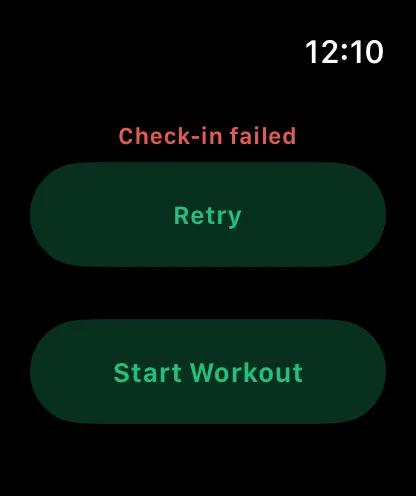
src/assets/screenshots/watch-checkin-android.png When the check-in succeeds, the button switches to a checkmark and shows the time it counted at. If the phone can’t be reached, the button shows an error so you can retry.
If you’ve already checked in for the day through any other path (the phone app, a finished workout, an imported run), the watch shows that you’re already checked in. You won’t be double-counted.
Live workout control
When your phone has an active workout session, the watch automatically switches to the workout screens. You don’t have to start anything on the watch. Start the session on your phone and your wrist takes over.
What you can do from the watch during a session:
- Adjust weight, reps or duration for the current set, with appropriate step sizes per field.
- Complete a set. The phone decides whether rest follows.
- Start the work timer for duration-based sets.
- Adjust or skip the rest timer.
- Move to the next or previous exercise.
- Add an extra set to the current exercise.
Step sizes match what makes sense on a wrist:
- Weight: 2.5 kg
- Reps: 1
- Duration: 5 seconds
- Rest: 10 seconds
Ongoing notification
While a workout is running, the watch keeps an ongoing activity card up. From the watch face you can:
- See the elapsed time of your session at a glance.
- Tap to jump straight back into the app, no swiping.
The card disappears once the workout is complete.
When the watch buzzes
The only haptic in the current version is a double buzz when rest is over. The watch vibrates twice so you can feel the cue and get back to the next set without looking.
When it doesn’t work
- “Can’t reach phone.” Your watch and phone aren’t connected over Bluetooth. Pull your phone closer or reconnect the pair from the watch’s settings.
- Workout actions feel delayed. Buttons send to the phone and wait for confirmation before redrawing. On normal connections this is 100 to 300 ms. Anything longer usually means the phone went to sleep or lost Bluetooth.
- Watch is stuck on an old workout state. The watch only knows what the phone last told it. Open the phone app to force a refresh.
What’s not in yet
The current version focuses on check-in and live workout control. Browsing history, group leaderboards, settings and sign-in stay on the phone for now.