
Live Sessions
Run a workout in real time with smart set propagation, rest timers and mid-session edits.
A live session is what happens when you actually train. You pick a workout template and tap Start. The app walks you through each set as you do it.
Starting a session
Tap the play button on a workout in the Train tab, or Start workout on Home when it’s up next. The app loads the template’s exercises and default sets, then drops you on the first exercise.
You can only have one active session at a time. If the app closes or your phone restarts mid-session, your progress is still there when you reopen it.
Tap the chevron in the top corner to fold the session away while you check something else. It keeps running in a bar above the tab bar, showing the workout, the current exercise and set and the time, and a tap brings you back.
Focus and list views
The session screen has two layouts and a button in the top bar switches between them:
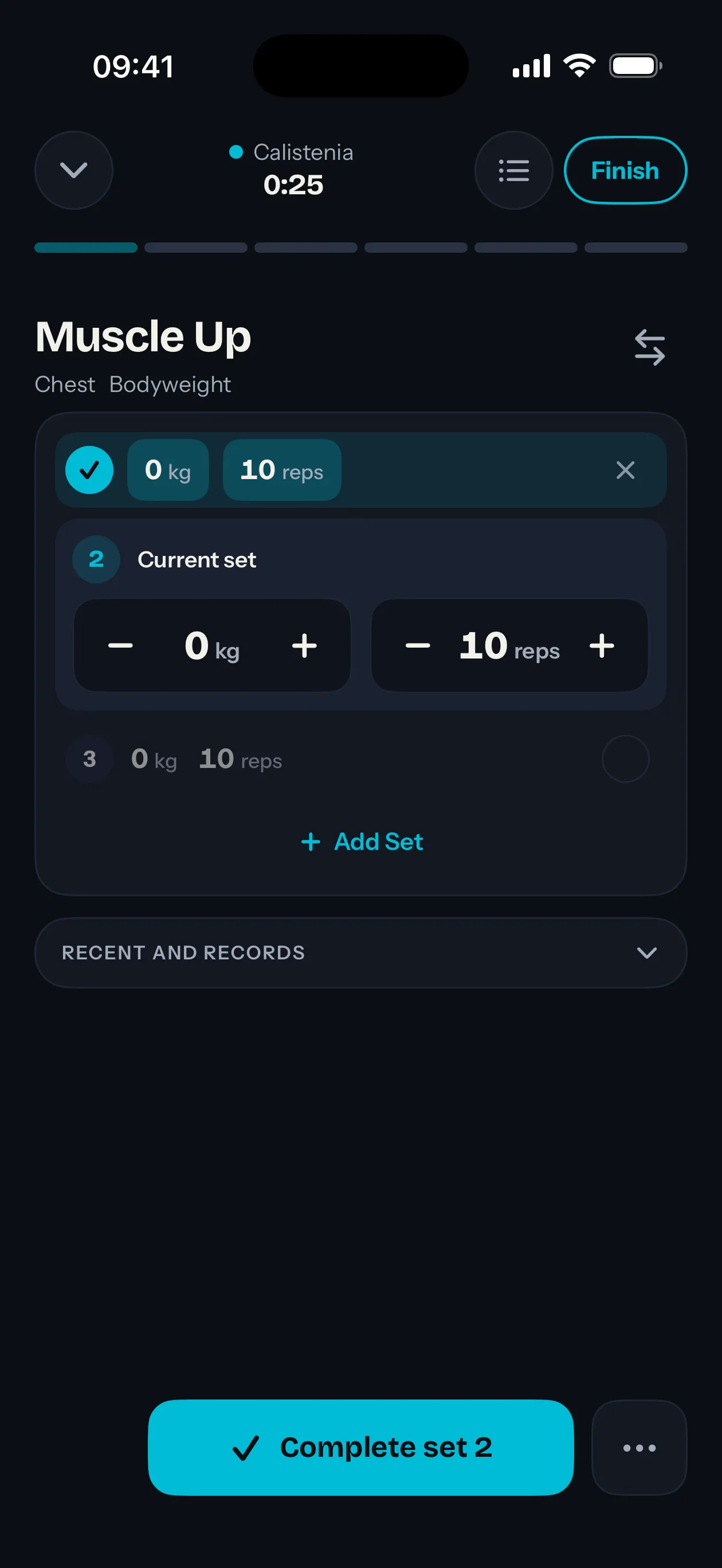
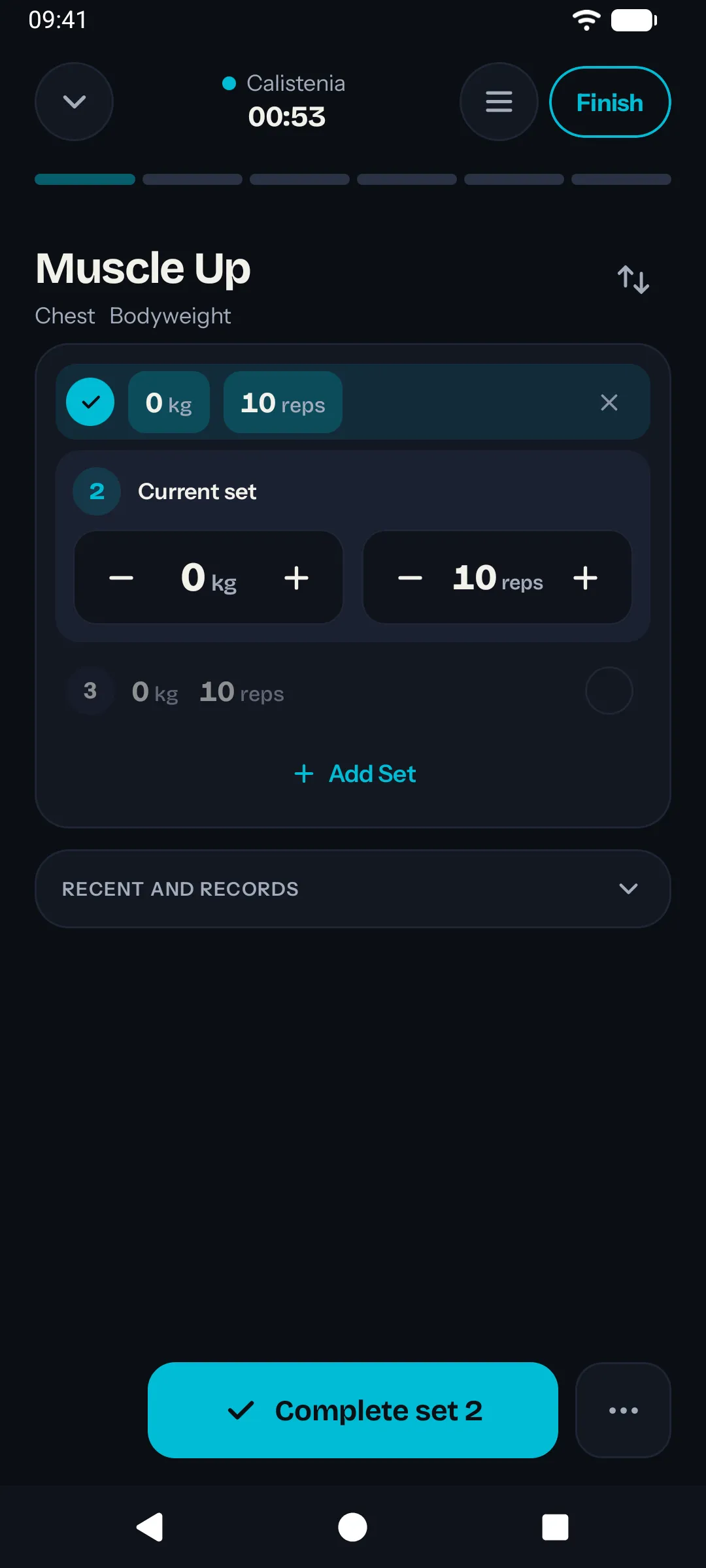
- Focus view shows one exercise at a time as swipeable pages, with big controls for the set you’re on. Best while you’re actually under the bar.
- List view stacks every exercise on one screen with a check next to each set, so you can see the whole session and tick sets off anywhere in it.
The app remembers which view you last used.
Logging a set
The set you’re on gets − and + buttons for its weight and reps; tap a number to pick it on a wheel instead. Every set shows its values with their units, so there are no columns to decode. Tap Complete set when it’s done. For a duration set, tap Start to begin the timer, then Done when you actually finish.
The weight buttons step by an amount that grows with the load: 0.5 kg under 10 kg, 1 kg up to 30 kg, 2.5 kg up to 40 kg and 5 kg above. Your watch steps the same way.
Under the sets, Recent folds out what you did in your last sessions of the exercise, with your records beside it if you have Sparta Pro.
A rest timer auto-starts after each completed set using whatever rest time you set. It shows as a bar at the bottom with buttons to take off or add 10 seconds and one to skip it.
When the rest timer ends, the phone vibrates and can play a short chime. When a duration set reaches its target, the same chime can play. Three switches under Profile → General control these: rest vibration is on by default, both sounds are off. They fire even with the screen locked.
For duration sets specifically:
- The work timer is separate from the rest timer.
- The duration you set is a target, not a hard cap. The timer keeps counting past the target.
- Done stops the work timer, records what you actually did and starts the rest timer.
Smart set propagation
When you finish a reps-based set, Sparta sometimes carries your weight or reps forward to the next incomplete set in the same exercise.
The rule is per-field and conservative:
- If the next set’s value still matches what it started as, Sparta updates it to match what you just did.
- If you’ve already changed the next set, Sparta leaves it alone.
So a flat plan like 30 kg, 30 kg, 30 kg follows the weight you bump up to. A ramp like 10 kg, 20 kg, 30 kg stays a ramp.
Duration sets don’t propagate targets for now.
Propagation only ever touches the immediate next incomplete set and never overwrites completed sets.
Swapping the current exercise
You can replace the current exercise with any other exercise by tapping the swap icon next to the exercise name.
- Allowed at any point in the session, including after sets are logged and on exercises that are part of a superset.
- Only the exercise itself changes. Your weights, reps, durations, rest and completion state are preserved.
- Superset partnerships stay intact.
- The swap is immediate. No confirmation dialog.
Adding an exercise mid-session
To add an exercise that wasn’t in the template, open the options menu (⋯, beside Complete set) and choose Add exercise. In list view, Add exercise sits at the end of the list.
- The template itself isn’t modified. Only your current session gets the extra exercise.
- Placement is relative to the current exercise. If the current exercise has no completed sets, the new one is inserted before it. Otherwise it’s inserted after.
- The new exercise starts with one default set: 0 kg, 60 seconds of rest and either 10 reps or a default duration depending on the exercise.
- You can create a custom exercise right from the same picker.
The same per-workout exercise limit applies to live sessions.
Saving what you did back to the template
Planned 3×10 and did 3×12? From the options menu, choose Save to workout. After a confirmation, all of that exercise’s sets replace the template’s defaults, carrying weight, target reps and rest. Only that one exercise changes. Order, supersets and the other exercises stay as they were.
The option is off for an exercise you swapped or added during the session, since it no longer maps to anything in the template.
Records broken live
With Sparta Pro, a trophy button appears on the bottom bar the moment a set beats one of your records, with a count. Tap it for the list, grouped by exercise. Undo the set and the record goes away again. See records and progress for what counts as a record.
Finishing the session
Tap Finish, say how hard it was and the session is saved. The workout report opens straight after. Once it’s saved:
- The session appears in your history calendar.
- It counts as one active day for that calendar date.
- It contributes to your group’s monthly leaderboard.
Sessions you start but never finish stay private to your device. Nothing leaves until you tap Finish. To throw a session away instead, choose Cancel workout from the options menu.
What if I lost track during the workout?
Open the session and edit any set you forgot to log. As long as the session isn’t finished, edits stay on your device. Finish whenever you’re ready.